Getting started
From a bare Debian or Ubuntu box to a running game server. Budget about fifteen minutes, most of it spent waiting for a download.
Before you start
You need:
- A Debian or Ubuntu host,
amd64orarm64— including a Raspberry Pi 4 or 5 (64-bit Pi OS) or any other arm64 single-board computer. The installer detects your architecture and pulls the matching build; it refuses other distributions. - Root access.
- Enough disk for the games you plan to run. A Minecraft server is a few hundred MB; DayZ and Rust are several GB each, and Steam needs room to stage a download on top of that.
- Docker — the installer installs it if it’s missing.
Yggdrasil Panel does not need a database server, a reverse proxy, or a message queue. It’s one static binary with the web UI embedded and SQLite for storage.
Install
curl -fsSL https://raw.githubusercontent.com/kristianwind/yggdrasil/main/install.sh | sudo bash
The installer detects your distribution, installs Docker if needed, creates a dedicated yggdrasil
system user, writes /etc/yggdrasil/config.yaml with a generated secret key and admin password,
drops a systemd unit, and starts the service.
It’s idempotent. Re-running it upgrades the binary and repairs a broken install, and it leaves an existing config file untouched.
When it finishes it prints your login details:
   URL:   http://192.168.1.50:8080
   Login: admin / <generated password>
If you missed them, the password is in /etc/yggdrasil/config.yaml under admin.password.
First login
Open the URL and log in.
Change the admin password now, then remove the admin: block from
/etc/yggdrasil/config.yaml so a plaintext password isn’t left on disk. The block only bootstraps
the first admin account — once an admin exists, Yggdrasil ignores it entirely, so deleting it is
safe and won’t lock you out.
sudo nano /etc/yggdrasil/config.yaml   # delete the admin: block
sudo systemctl restart yggdrasil
While you’re here, consider adding a second factor under Settings — Yggdrasil supports both TOTP apps and passkeys. See Users and permissions.
The layout
Ten things in the sidebar, five of them admin-only:
| Page | What it’s for |
|---|---|
| Dashboard | Fleet overview, host CPU/RAM/disk, recent servers |
| Statistics | Where the machine’s CPU, memory and disk actually go |
| Servers | Everything you run, and where you create more |
| Runes | The catalog of things you can run |
| Schedules | Cron jobs — backups, restarts, messages |
| Domains | Subdomains mapped to servers |
| Bans | Cross-server ban list |
| Users | Accounts and permissions |
| Audit log | Who did what |
| Settings | Integrations, backups, AI, network |
Pick a rune
A rune is a recipe: one declarative YAML file that teaches Yggdrasil how to install, run, query and manage one game or app. The panel ships with a handful embedded — Minecraft Java, Minecraft Bedrock, Uptime Kuma, Vaultwarden, and a Cloudflare Tunnel connector — and a much larger catalog lives in the repository.
Open Runes. To pull in the rest, click Browse GitHub, which lists the runes in
community-runes/ and imports one with a click:
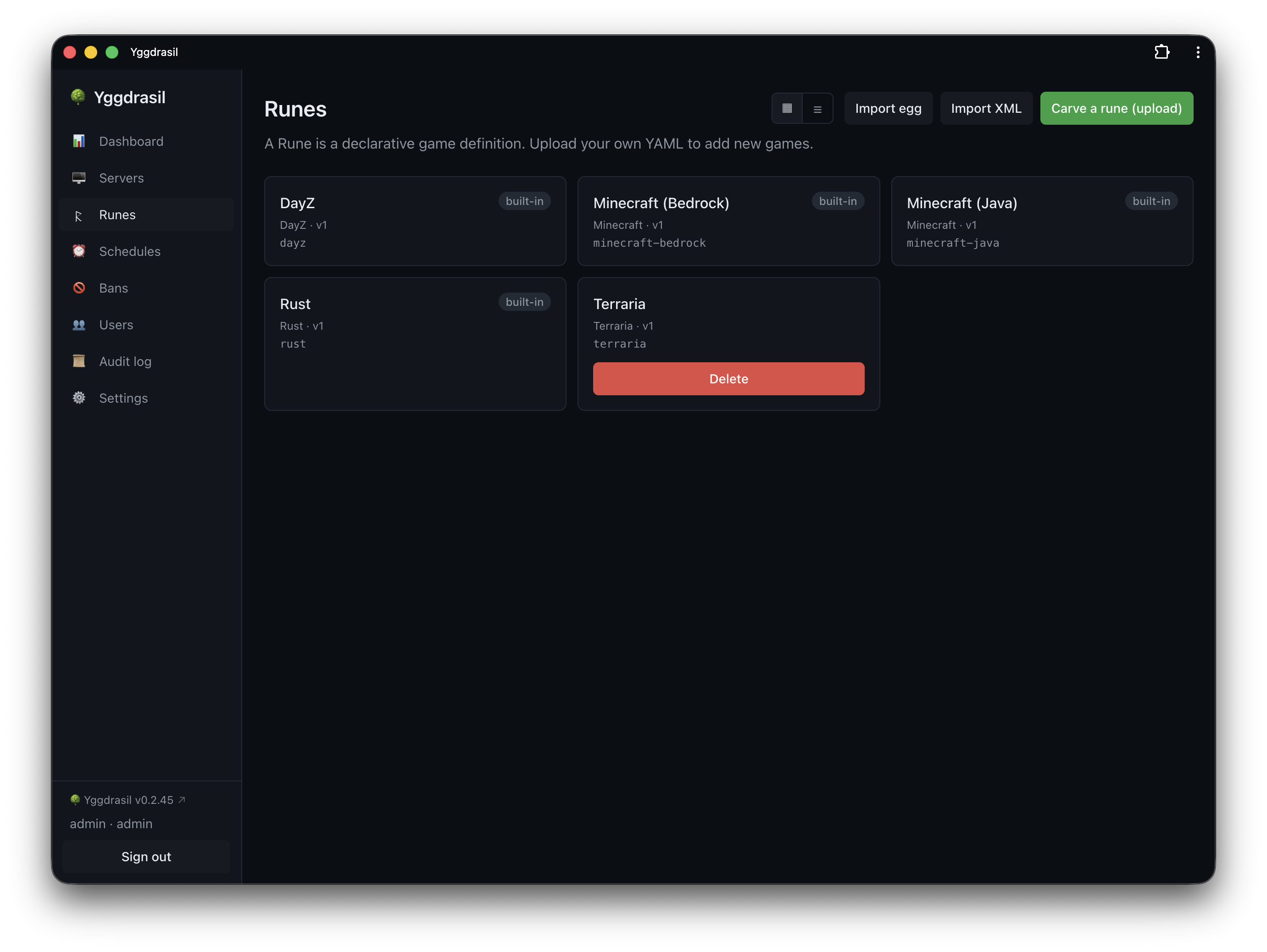
- games/ — DayZ, Rust, Terraria, Factorio, Luanti, and an experimental Genshin Impact (Grasscutter) rune
- databases/ — MariaDB, PostgreSQL, MongoDB
- apps/ — Gitea, Jellyfin, Grafana, n8n, Nextcloud, WordPress, Pi-hole, and more
Importing a rune only adds it to the catalog. Nothing runs yet.
Adding and removing runes is admin-only, deliberately: a rune chooses the container image, the command, and the user it runs as, so being able to add one is effectively root on the host.
Create your first server
Go to Servers → New server. Pick a Rune, give the server a Name, and optionally put it in a Realm (a group — useful later for granting someone access to a set of servers at once).
The rest of the form is generated from the rune’s variables, so it differs per game: Minecraft asks
for a Java version and a server type, DayZ asks for a mission. Set CPU limit and RAM limit
if you want them; 0 means unlimited.
You don’t choose ports. Yggdrasil allocates free ones from its configured range (25000–30000 by default) and deliberately does not use the game’s well-known port — your Minecraft server will not be on 25565. Off-default ports get scanned and hammered less. The server’s page shows the real connect address.
Install it
A new server starts in the installing state. Yggdrasil runs the rune’s install step in a
throwaway container — downloading the Paper jar, or running SteamCMD — and streams the output live.
Watch it; this is where a bad Steam credential or a full disk shows up.
Steam games take a while. A DayZ install is several GB.
Start it
When the install finishes, hit Start. The status goes starting → running.
That intermediate state is real, not cosmetic: Yggdrasil watches the container log for the rune’s
readiness pattern and only reports running once the game says it’s accepting players. A server
sitting in starting forever usually means the process died or never printed the expected line —
open the console and look.
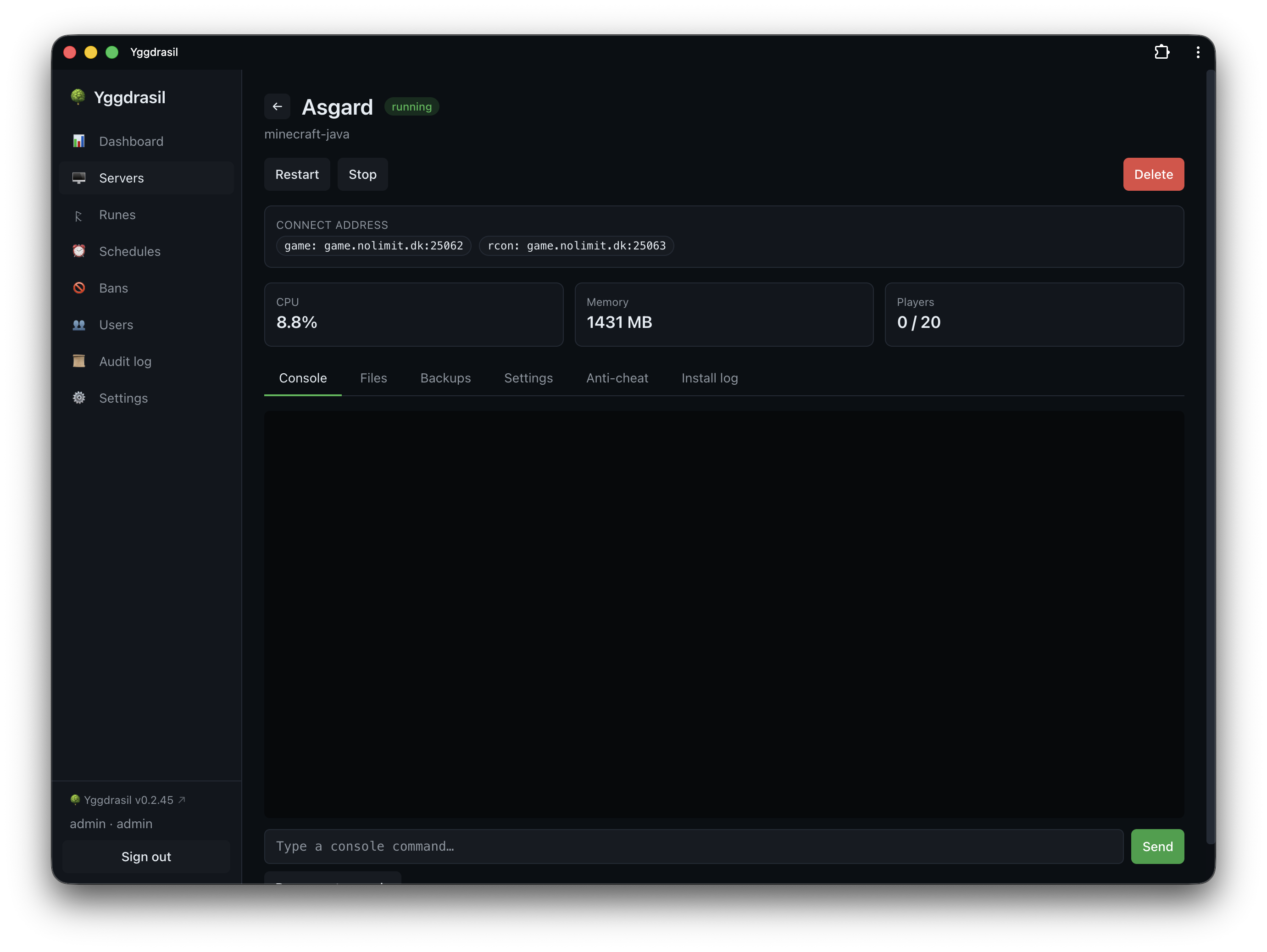
The console is interactive where the game supports it, and every server also has live log streaming, a file browser, and RCON where the game offers it.
Connect
The server page shows a connect address. On your LAN, that’s it — you’re done.
Getting players in from the internet needs one more step, because the panel can’t open your router for you unless you tell it how. The options, roughly in order of how much they’ll annoy you:
- UniFi — if you run a UniFi gateway, give Yggdrasil its URL and credentials under Settings → Network and it creates and removes WAN port-forward rules as servers start and stop.
- UPnP — off by default, and off on most routers. Cheap to try.
- Manual port forwarding — forward the server’s ports on your router yourself.
- Cloudflare Tunnel — no port forwarding at all, but HTTP(S) only, so it’s for web apps, not games.
The server page has an online from outside check that probes your public address, so you can tell “the game is up” apart from “the game is reachable”.
One trap worth knowing before you hit it: a Cloudflare proxied (orange-cloud) DNS record only carries HTTP and HTTPS. Point a Minecraft hostname at a proxied record and players cannot connect, even though the server is perfectly healthy. Game hostnames need DNS-only (grey cloud).
The full picture is in Networking.
What next
You have a server. The things most people set up next:
- Backups — add a target, then a nightly schedule. The dashboard nags you about servers without a recent backup.
- Notifications — Telegram, Discord, or a webhook, so you hear about a crash without watching the panel.
- Monitoring and alerts — CPU/RAM/disk alarms, the crash watchdog, and auto-restart.
- Users and permissions — let a friend restart one server without handing over your admin account.
Troubleshooting
The panel won’t start.
sudo journalctl -u yggdrasil -f
A server won’t leave starting. The process is up but hasn’t printed its readiness line. Open
the console and read the log — a crash loop, a bad config, or a game that failed to bind its port.
A server won’t start at all. Read the console output. For Minecraft specifically, the usual
cause is the EULA: the rune writes eula.txt from the EULA environment variable on every boot, so
editing the file by hand achieves nothing. Set EULA to true in the server’s settings instead.
Players can’t connect but the server is healthy. Check the outside reachability badge, not the status dot. Then check your port forwarding, then check whether the hostname is behind a proxied Cloudflare record.
See also
- Configuration — every key in
config.yaml - Runes — the catalog in depth
- Servers — lifecycle, files, console, cloning