Users and permissions
How Yggdrasil decides who may do what: admins, delegated users, realms, the eight permission bits, and the four scopes a grant can live at. Read this before you hand anyone else a login.
Admins and delegates
Every account has one of two roles: admin or user. The installer creates the first
admin. Omitting the role when creating an account gives you user, the safe default; naming
a role that isn’t one of the two is rejected with a 400 rather than quietly filed as
something else. The same on update, and the whole request is refused — so a mistyped role
never lands a password change alongside a promotion that didn’t happen.
A global admin bypasses every permission check. There is no scope you can put an admin in and no grant that limits one — the check returns “allowed” before it ever looks at the grants table. Treat the admin role as full control of the host: runes define the Docker runtime (image, command, user, capabilities, devices, mounts), so rune management, backup targets, users, realms and panel settings are all admin-only.
Everyone else is a delegate: a user account that holds zero or more grants.
A grant is a set of permissions attached to a scope. With no grants, a delegate can log
in and sees nothing.
The sidebar reflects this: Bans, Users, Audit log and Settings are shown to admins only. A delegate gets Dashboard, Servers, Runes, Schedules and Domains.
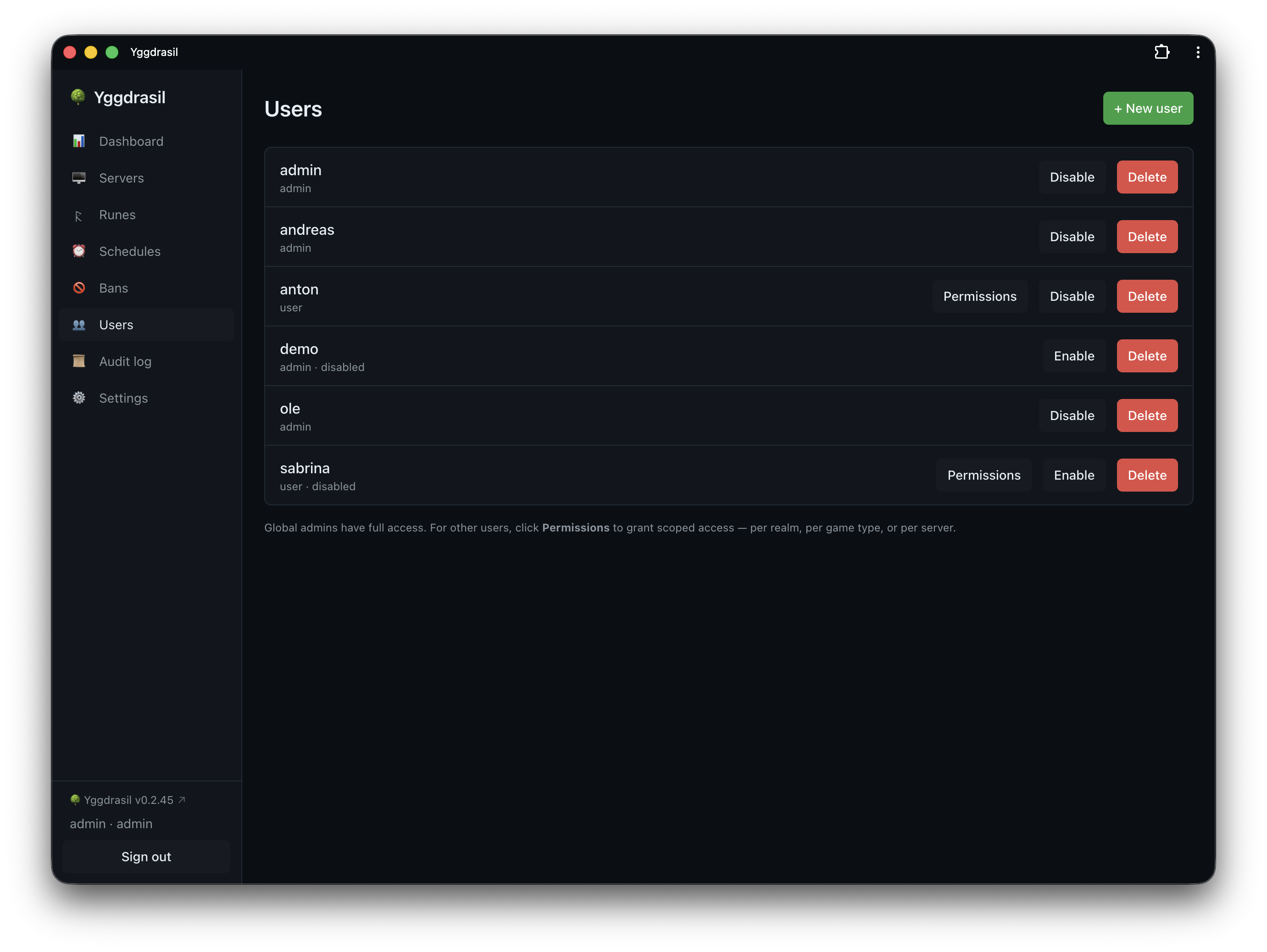
You manage accounts under Users. From there you create a user, reset a password, flip the role, disable the account, or delete it. Two guards apply: you cannot delete your own account, and you cannot delete the last enabled admin.
Disable blocks sign-in without destroying the account, and ends the user’s active sessions on their next request. It is the reversible version of Delete.
Realms
A realm is a server group — a name and a description, nothing more. Realms exist so you can talk about “the Nordic cluster” or “the test box” as one thing: a server belongs to at most one realm, and a grant can target a realm instead of naming servers one by one. The Servers page groups the list by realm.
Most realms appear on their own: creating a server files it under a realm named after its rune’s category, creating that realm if it doesn’t exist yet. So you’ll find a Minecraft and an Apps without ever having asked for them.
Settings → Realms is where you make your own, rename the ones that turned up, or delete what you don’t want. It lists each realm with how many servers are in it. Creating an empty realm up front is useful when you want to grant someone “everything in here” before the servers exist. Realm names are unique, and naming one that’s taken is refused rather than silently merged.
A realm’s name is what servers are matched against, so it can’t be blank.
A server’s realm is picked when you create it, and an admin can move it later — moving a server between realms changes which delegates can reach it, so that change is admin-only even though the rest of the server settings are not.
Deleting a realm does not delete its servers. Yggdrasil detaches them and leaves them realm-less. Any grant scoped to that realm stops applying, so check who had one first.
The eight permissions
These are the only assignable permissions. The names in the first column are what the API stores and returns; the second column is what the permission editor calls them.
| Permission | UI label | What it unlocks |
|---|---|---|
server.view |
View status | The server appears in the list at all. Status, metrics, install log, query/reachability results, activity (admin log), domains. |
server.control |
Start / stop / restart | Start, stop, restart. Install, update and reinstall. Auto-restart and watchdog settings. Wipe. |
server.console |
Console & RCON | The live console stream, sending commands, RCON execute, and the Players tab actions (kick, broadcast, lock joins). |
server.files |
Edit files | The Files tab: browse, read, write, upload, download, delete, and file versions. |
server.create |
Create servers | Creating a new server in the scope, and cloning an existing one into it. |
server.delete |
Delete servers | Deleting a server. |
server.backup |
Backups | The Backups tab: list, run, verify, restore and delete backups. |
server.schedule |
Schedules | Seeing and creating schedules for the server. |
server.view is the gate on visibility. List endpoints filter on it, so a grant that
carries server.console but not server.view leaves the server hidden — the delegate
has nowhere to click. Pair server.view with whatever else you grant.
The API attaches the caller’s effective permissions to each server it returns, and the UI uses that to hide tabs and buttons a delegate cannot use. Admins always receive the full list.
Scopes, and how a grant is matched
A grant lives at one of four scopes:
| Scope | scope_id |
Covers |
|---|---|---|
global |
empty | Every server, present and future. |
realm |
a realm ID | Every server in that realm. |
gameskill |
a rune ID | Every server built from that rune, in any realm. |
server |
a server ID | That one server. |
The gameskill spelling is the code and API name for what the UI calls a rune.
Matching is a straight OR across grants. For an action on a target, Yggdrasil walks the
user’s grants and allows the action the moment it finds one that both contains the
permission and whose scope covers the target: a global grant always covers; a
realm grant covers when the server’s realm matches; a gameskill grant covers when
the server’s rune matches; a server grant covers when the server ID matches. If no
grant matches, the request gets a 403.
Grants stack and never subtract. There is no deny rule — you cannot grant
server.control on a realm and then carve one server out of it. Grant narrowly instead.
Realm- and rune-scoped grants apply to servers created later. That is the point of them,
and also the thing to watch: a server.delete grant on a realm covers servers that do
not exist yet.
server.create is checked against a realm/rune pair rather than a server, since there is
no server yet. A global create grant offers every realm and rune in the create dialog; a
realm grant offers any rune in that realm; a rune grant offers that rune in any realm.
The permission editor
Open Users, then Permissions next to an account. The button only appears for non-admin accounts, since an admin already has everything.
The editor lists the user’s grants; each card is one scope plus a row of permission checkboxes. + Add grant appends a card, and the scope dropdown swaps the target picker between realms, runes and servers. Grants with no permissions checked are dropped on save, and a non-global grant without a target refuses to save.
Saving replaces the user’s whole grant set with what is on screen — this is not a merge. Load the editor, change what you mean to change, and save the whole picture.
Per-server delegates
The same data, from the other end. Open a server, go to the Settings tab, and find
Delegated users: add a user, tick the permissions they get on this server, and
save. New rows start with server.view ticked.
This panel writes server-scoped grants for that one server, and touches nothing else —
a user’s global, realm and rune grants survive untouched. Within the panel’s own scope
it is still a replace: saving sets the complete list of server-scoped grants for that
server, so removing a row removes that person’s access to it.
The panel offers seven of the eight permissions; server.create is absent, since
creating a server is scoped to a realm or rune rather than to an existing server.
Both the delegates panel and the permission editor are admin-only.
Worked example: give a friend console access to one server
Your friend should be able to watch the console and type commands on mc-survival, and
do nothing else anywhere.
- Users → + New user. Username
bjorn, a password, roleuser. Leave it there — do not make them an admin. - Open Servers → mc-survival → Settings, scroll to Delegated users.
- + Add user… → bjorn. Tick View and Console / RCON. Leave Start / Stop, Files, Backups, Schedules and Delete unticked.
- Save delegated access.
Bjorn now logs in and sees exactly one server. The Console tab works. The Files and
Backups tabs are not offered, start/stop is not offered, and the API refuses those calls
with a 403 even if he crafts them by hand. He cannot see any other server, because
server.view on mc-survival is his only visibility.
Note what console access means in practice: on most games the console is the admin
interface. Whoever has server.console can run whatever that game’s console allows.
Two-factor authentication (TOTP)
Under Settings → Security → Two-factor authentication, choose Enable 2FA.
Yggdrasil generates a secret, stores it encrypted and pending, and shows you the secret
plus an otpauth:// URI for your authenticator app. Enter a current code and
Confirm & enable — 2FA is only switched on once a code verifies against the pending
secret. Disabling it also requires a current code; a session that has been hijacked
cannot strip the second factor without the authenticator.
The implementation is RFC 6238: HMAC-SHA1, 6 digits, a 30-second step, and a ±1-step window for clock skew. That works with Google Authenticator, Authy and the rest.
Replay protection. A code stays valid for about 90 seconds thanks to the skew window, which is long enough for someone watching your screen to reuse it. Yggdrasil records the step counter of every accepted code and rejects any code at or below the last accepted one — the second use of a code fails with “2FA code already used; wait for the next one”, and counts as a failed login attempt.
There are no recovery codes. If you lose the authenticator, another admin has to reset you, so keep a second admin account or a passkey.
Passkeys (WebAuthn)
Under Settings → Security → Passkeys, choose Add a passkey and name it. On the login page, Sign in with a passkey then signs you in with no password and no TOTP code — a passkey is already two factors (the device, plus the biometric or PIN that unlocks it). Yggdrasil requires user verification and a resident (discoverable) key, so you do not type a username first.
You can register several, rename them, and remove them. Each passkey shows when it was added and last used. Passkeys are per-account and self-service: you manage your own, and an admin cannot add one for you.
The relying party is derived from the host the request arrived on — the RP ID is the
bare hostname and the origin is the scheme and host, honouring X-Forwarded-Proto from a
reverse proxy. Browsers only allow WebAuthn in a secure context, so passkeys need HTTPS
(or localhost). Reaching the panel over plain HTTP on a LAN address will not offer them,
which is exactly why password and TOTP remain as a fallback.
A registration or login ceremony must finish within 5 minutes of starting, or you get “session expired — try again”.
API tokens
For automation — a script, a home assistant, a cron job on another box. Settings → Integrations → API tokens: give the token a name and choose Create.
A token is the string ygg_ followed by 24 random bytes in base64url. It is shown
exactly once, in the panel, right after creation. Only its SHA-256 hash goes to the
database, so nobody — including you, including an admin — can read it back. Lose it and
you delete the token and mint another.
Send it as a bearer token:
curl -H "Authorization: Bearer ygg_xxxxxxxxxxxxxxxxxxxxxxxxxxxxxxxx" \
  https://panel.example.com/api/servers
Three properties of API tokens deserve to be stated plainly, because the intuitive assumption is wrong in each case:
- A token inherits its owner’s full role and grants. It has no scope of its own. There is no way to mint a read-only token or a token limited to one server. A token created by an admin is an admin credential with no expiry. If you want a narrow token, create a narrow user, grant it what you want, and mint the token as that user.
- Logging out does not revoke API tokens. Logout works by bumping the owner’s
token_version, which invalidates their JWT sessions. API tokens are looked up by hash and never consulttoken_version, so they keep working. The same goes for a password reset or a role change. To revoke a token, delete the token. - Disabling or deleting the owning user does stop its tokens — the lookup joins the users table and requires the account to be enabled.
You only ever see and delete your own tokens; the list is filtered by owner. Each row shows when it was created and when it was last used, which is the cheapest way to spot a token nothing needs any more.
Login protection
Two independent limits sit in front of the login endpoints.
Per-source rate limit. At most 5 attempts per source address per rolling minute, on
/api/auth/login and on both passkey login steps. Over that, the request gets a 429
(“too many login attempts”).
Per-account lockout. Because a source address can be spoofed via X-Forwarded-For,
there is also a limit keyed on the username itself: 10 failed attempts within 15 minutes
locks that username for 15 minutes, regardless of where the attempts come from. A
successful login clears the counter. Failures counted include an unknown or disabled
username, a wrong password, a wrong TOTP code, and a replayed TOTP code.
Passwords are hashed with Argon2id. Login never distinguishes “no such user” from “wrong password” — both return “invalid credentials”.
Unlocking someone who just mistyped it
The lockout is right for an attack and irritating for a colleague who got their own password wrong a few times and then remembered it. Users shows a locked account with the time it frees itself, and an Unlock button beside it that lifts that one lock immediately. The action is written to the audit log — lifting a brute-force protection should leave a trace.
Three things clear a lock: the fifteen minutes running out, a successful login, or that button.
A restart of the panel also clears every lock, because they are held in memory rather than in the database. That was the only lever there used to be, and it is a poor one: it drops the locks that are holding a real attack off along with the one you meant to lift.
Sessions and revocation
Login mints a JWT (HS256) and sets it as the ygg_token cookie: HttpOnly, SameSite=Strict,
Path=/. The same token is also returned in the response body for clients that prefer
Authorization: Bearer. Lifetime comes from session_ttl_hours in the panel config,
default 168 (seven days). WebSocket handshakes, which cannot set headers, pass the
token as a ?token= query parameter; the request logger redacts it so it never lands in
journald.
Every authenticated request is re-validated against the database. The middleware
re-reads the user’s role, disabled flag and token_version on each call, and uses the
live role rather than the one baked into the token. The consequences are worth knowing:
- Disable an account, and its sessions stop on the next request.
- Demote an admin to
user, and they lose admin powers immediately — no waiting for the JWT to expire. - Logout, a password reset, a role change, or toggling disabled all bump
token_version, which invalidates every JWT that user holds, everywhere.
Rejected sessions get a 401 with “session expired”.
Grants themselves are not cached: the permissions table is read per request, so a permission change takes effect on the delegate’s next click.
As defence in depth against CSRF, state-changing requests (POST/PUT/PATCH/DELETE) that
carry an Origin header not matching the panel’s own host are refused. Automation
sending a bearer token sends no Origin and passes. The check runs inside the
authentication middleware, so it covers the authenticated API and nothing else — the
public endpoints that sit outside it (login, passkey login, and the beacon receiver) are
not screened this way.
Admin actions are written to the audit log — user creation, permission changes, delegate changes, token minting and deletion, 2FA and passkey changes. It is under Audit log in the sidebar.